
Need a hand? Contact Support or dial 611 from any LineOne phone.
Occasionally, you may run into an issue where your Yealink headset needs to be reset to factory defaults. The steps below will walk you through that process.
Factory Reset for WH62/63:
Method 1: Hold the PC button and Phone button for 6 seconds at the same time.
After 6 seconds there is a voice prompt "Factory Reset".
Unplug the power and USB from the Yealink headset base for about 10 seconds.
Reconnect the power and USB
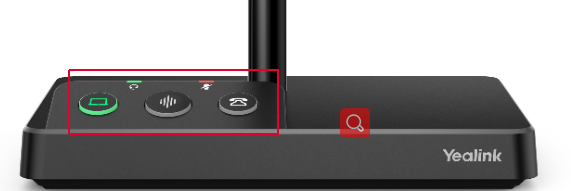
Method 2: Factory reset via Yealink USB Connect.
Open Yealink USB Connect (YUC), go to Device recovery -> Restore factory settings -> Click OK.
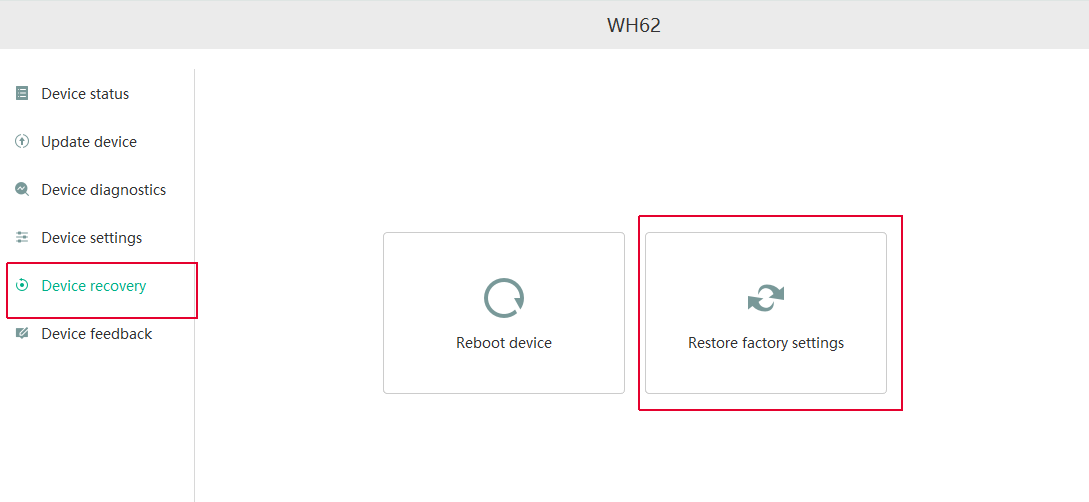
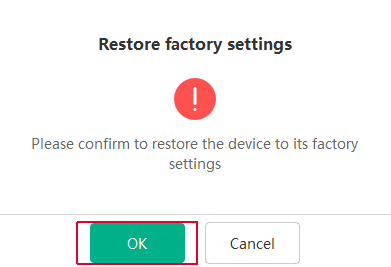
Factory reset for WH66/67:
Method 1: Do the following via the base screen:
For Teams version :
Tap

or the user account avatar. Go to Setting -> Advanced Setting -> Reset configuration.
For the UC version :
Tap

Go to Advanced Setting -> Reset Configuration. The screen prompts you whether to reset the configuration or not Confirm the action.
Method 2: Factory reset by YUC.
Open Yealink USB Connect (YUC), go to Device recovery -> Restore factory settings -> Click OK.
Need Help?
If you need assistance updating your Yealink WH62/63 or WH66/67 headset, our LineOne Help Desk is here to support you.
📞 Dial 611 from your LineOne phone
📧 Email us at support@line.one
🌐 Open a ticket online: line.one/support-request