
Need a hand? Contact Support or dial 611 from any LineOne phone.
All LineOne Advanced Users, Call Center Agents, and Call Center Supervisors can customize their phone buttons through the LineOne User Portal.
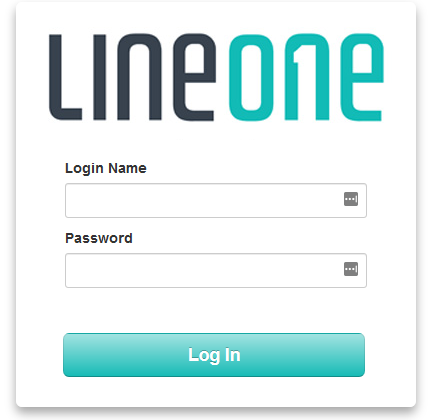
🔐 Logging In
Go to https://portal.line.one
Username: YourExtension@YOURDOMAIN
Password: Your LineOne portal password
If you're unsure of your login details, contact your local admin or LineOne Support.
⚙️ Accessing Button Builder
Once logged in, locate your phone at the bottom right of the portal. If you see a gear icon, click it to open Button Builder.
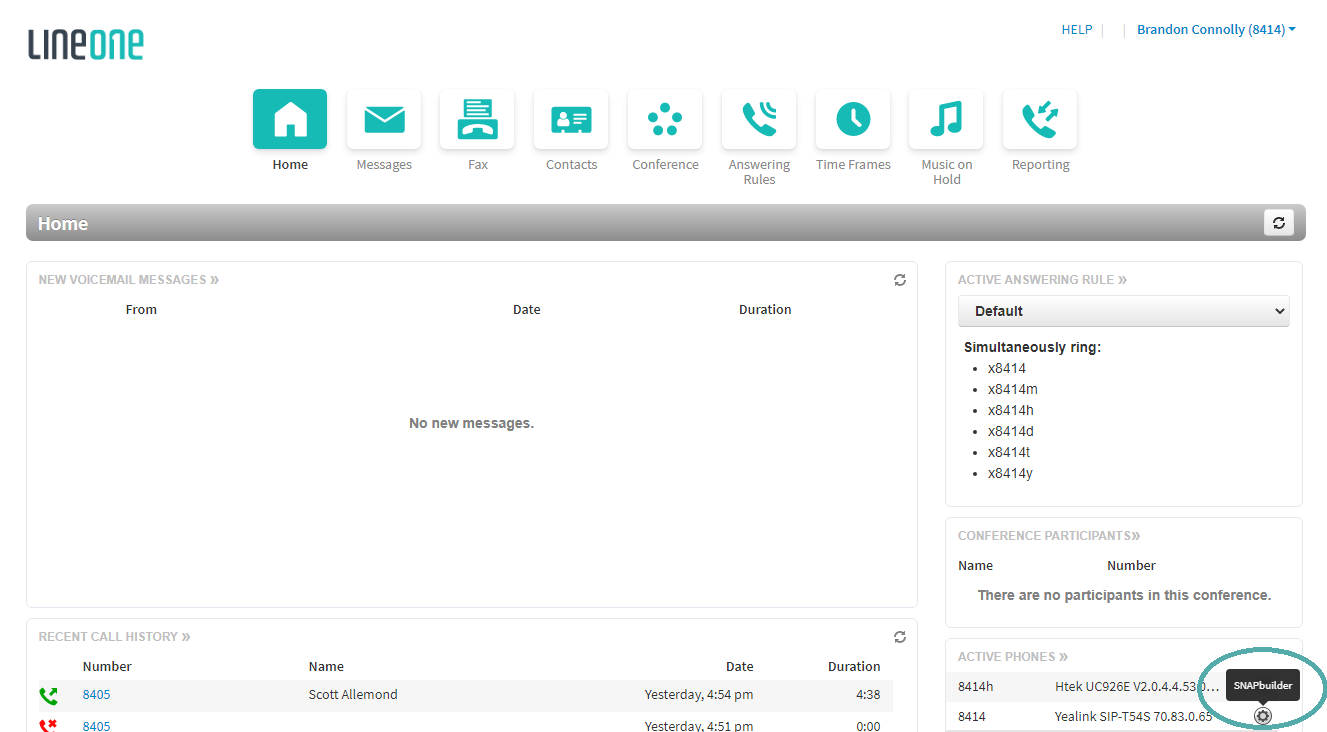
If you do not see the gear icon, contact LineOne Support. Not all users have access to Button Builder.
🎛️ Programming Buttons
The left side shows an image of your phone, and the right side shows your current button assignments. Any button with a locked icon is managed by LineOne and cannot be changed.
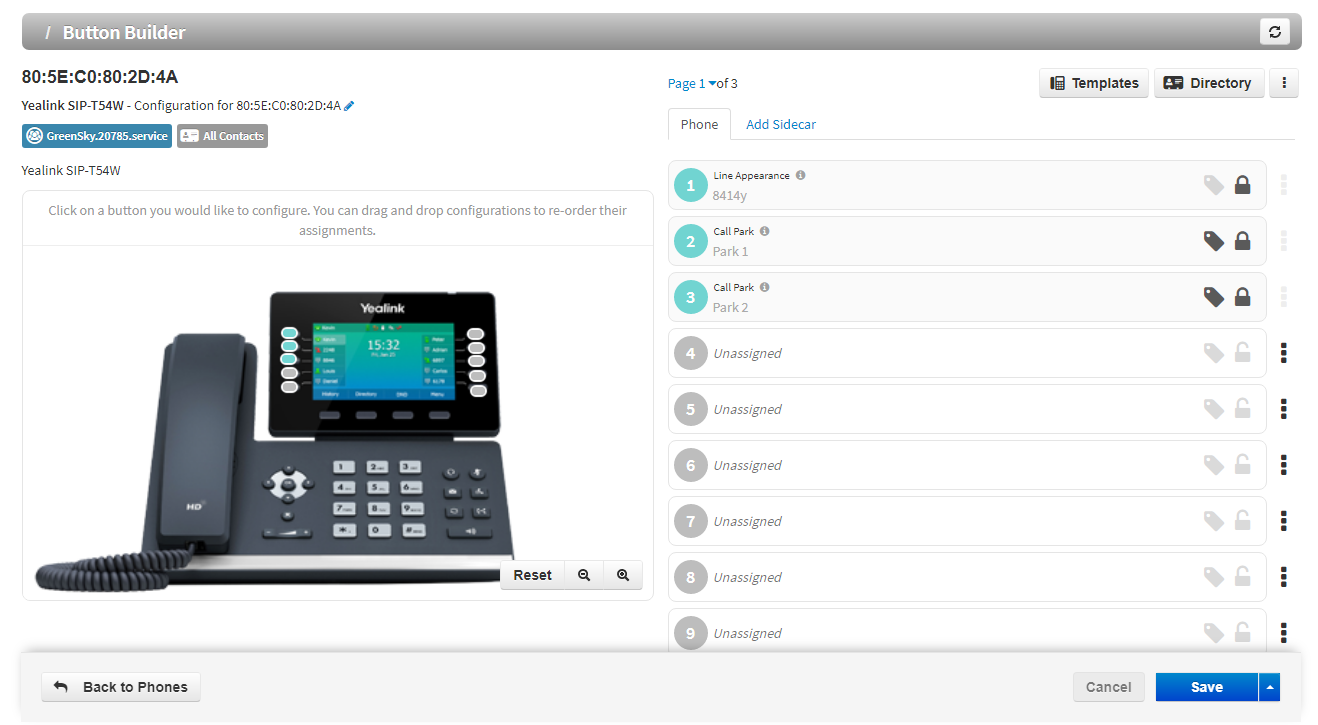
Select a button from the phone image or list to begin editing. Common features include:
User BLF – Monitor status and call another extension with one touch
Speed Dial – Dial an external number or a system feature code
Call Park – Set up by LineOne Support
Line Appearance – Set up by LineOne Support
DTMF – Send digits during a live call (e.g., conference PIN)
Queue Toggle – Set up by LineOne Support
Timeframe Toggle – Set up by LineOne Support
🔄 Example: Setting Up a BLF
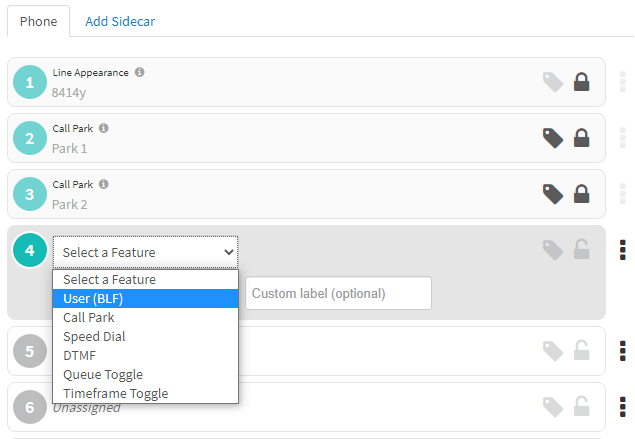
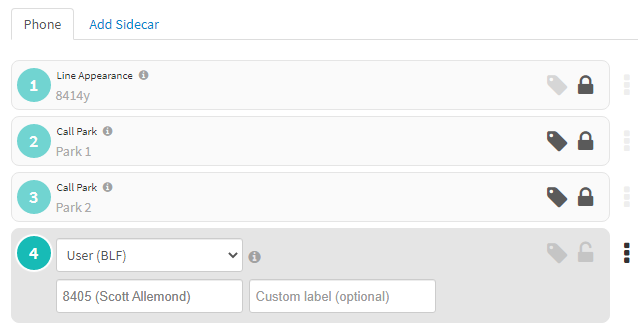
After selecting BLF, type a name or extension into the field. The system will auto-suggest matches. Select the user and, if desired, customize the button label.
💾 Saving Changes
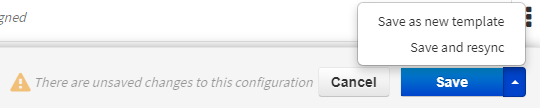
Click the arrow beside Save, then choose Save and resync. Your changes will appear on your phone after syncing completes (usually within a minute).
Need Help?📞 Dial 611 from your LineOne phone |