📥 Access the PortalTo access the LineOne Instant Fax Portal, go to:
🔗 https://portal.line.one Login Name Format: FAX-NUMBER@YOURDOMAIN
If you’re unsure of your login, check with your local admin or contact LineOne Support. Note: Not all customers have access to the Instant Fax Portal. To add this feature, please contact LineOne Support. 📨 Navigating the Fax PortalOnce logged in, click the Fax icon from the top menu. 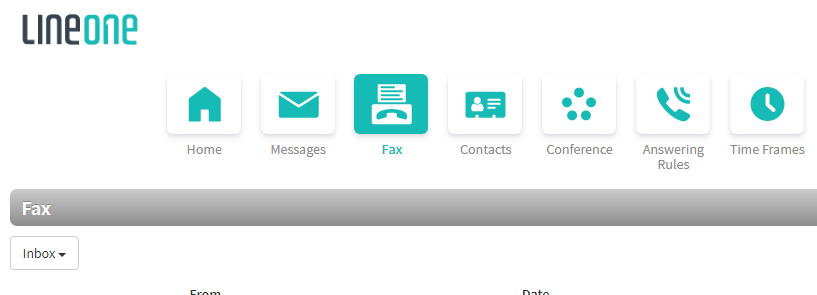 You can switch between the Inbox (received faxes) and Sent items to manage your faxes. 📤 How to Send a FaxClick the Send Fax button. Choose a Cover Page option: None Compose – Type your custom message File – Upload a file (Accepted formats: html, pdf, doc, docx, jpg, png, odt)
Upload the file you want to fax (Same file types supported). Select the Caller ID to appear on the outbound fax. Enter the recipient’s 10- or 11-digit fax number. Click Send. You’ll receive a confirmation message once accepted by the fax server.
☎️ Caller ID SelectionYou can choose from any Direct Inward Dial (DID) number assigned to the Instant Fax Portal user. If none is assigned, the system will use a default number. ✅ Check Fax StatusTo track a fax you’ve sent, go to the Sent tab. You’ll see the delivery status listed there.  Need Help?📞 Dial 611 from your LineOne phone
📱 Call us at 337-417-9020
📧 Email: support@line.one
🌐 Visit: line.one/Support |